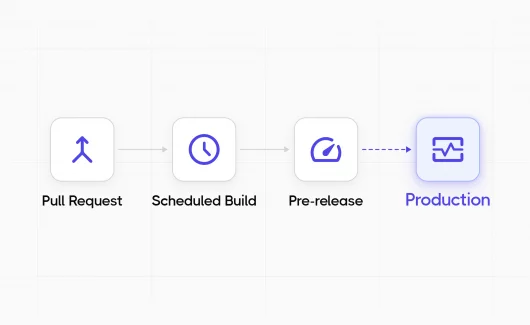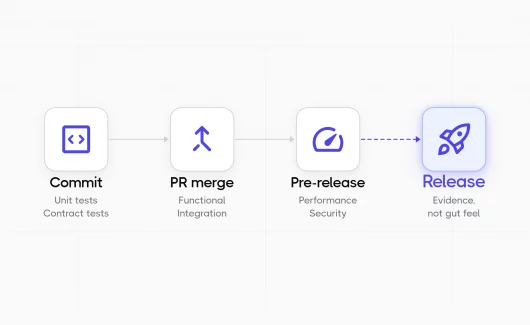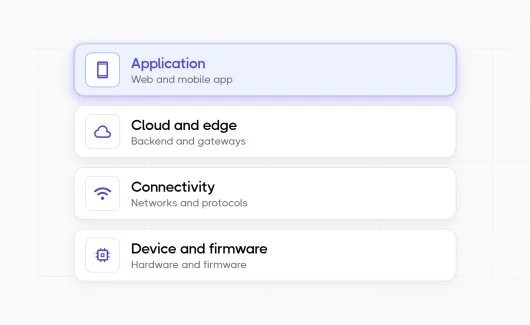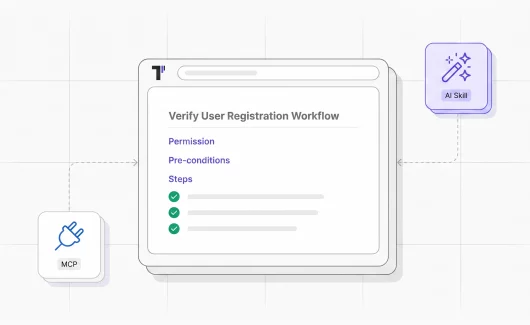





When your team releases a mobile app, the automated test suite passes successfully. Every functional test completes and the release is on schedule. Passing tests proves the app works. Whether anyone can use it is a separate question. You can see the difference only when real users interact with the product. That’s the task of usability testing for mobile apps. In this guide, you’ll learn how to run it and how to automate the checks that cost your team hours every release.
What Is Usability Testing for Mobile Apps?
Usability testing for mobile apps means watching real users complete tasks in your mobile application to see where they get stuck and why they leave.
Mobile usability testing answers a different question than functional testing. Functional tests check whether the checkout processes a payment. Usability testing checks whether a user can find the checkout at all. Both can pass or fail independently, and your CI dashboard covers the functional side.
Mobile raises the difficulty compared to desktop. A few things change the game:
- Touch instead of clicks. A desktop user gets hover states and tooltips as hints. A mobile user gets a bare screen and a thumb.
- Small screens and thumb reach. A button in the top corner is easy to see and hard to reach in one-handed use.
- Context and interruptions. People use your app on the subway, with notifications landing every minute.
- Device fragmentation. The same flow renders differently across hundreds of screen sizes and OS versions.
- Network variability. A flow that feels instant on office Wi-Fi can feel broken on a weak mobile connection.
A food delivery app is a good example. The payment API passes every automated run. In a usability testing session, four out of five users fail to notice the promo code field because the keyboard covers it. Functional tests miss it every time.
Why Is Usability Testing Important for Mobile Apps?
Because usability decides retention. A confusing mobile experience pushes users to uninstall. Fixing it after release costs more than catching it in a prototype.
The importance of mobile app usability testing rests on a simple fact: users leave instead of filing bug reports. The app store gives them thousands of alternatives in seconds. A frustrated user writes a one-star review or deletes the app. Your analytics show you the drop and keep the reason hidden.
The good news is that the effort required is small. Your first usability test needs five users and a few hours. The retention data explains why it matters: by day 30, the average app keeps around 5% of its new users, according to 2026 benchmarks from Business of Apps.
For QA leads and PMs, there’s a second benefit: release confidence. A green test run tells stakeholders the build is stable. A usability report tells them users can complete the flows that matter for this release. Together they answer the question every release meeting asks: is this build ready for users?
Usability Testing Methods: Which Fits Your Team
Every method has its place. You can choose by what you want to learn and by the product’s stage. Budget plays a role too.
| Method | Best for | Typical sample | Cost |
|---|---|---|---|
| Moderated (in person or video call) | Early prototypes, complex flows, digging into the why | 5 to 8 users | Medium to high |
| Unmoderated remote | Validating hypotheses at scale, natural user behavior | 15+ users | Low to medium |
| Lab / in-person | Observing hesitation and body language in depth | 5 to 8 users | High |
| Guerrilla | Quick checks on early ideas | 5 to 10 passersby | Very low |
| A/B testing | Choosing between two live variants with quantitative data | Large user samples | Low (needs traffic) |
A practical rule: moderated works while the problem is still unclear, unmoderated testing when you know what to measure. If you are testing a new onboarding concept, you can run a moderated user test and ask questions in person. When comparing two versions of a cart screen, both variants can go live. The data shows which version performs better.
How to Run Usability Testing for a Mobile App: Key Steps to Follow
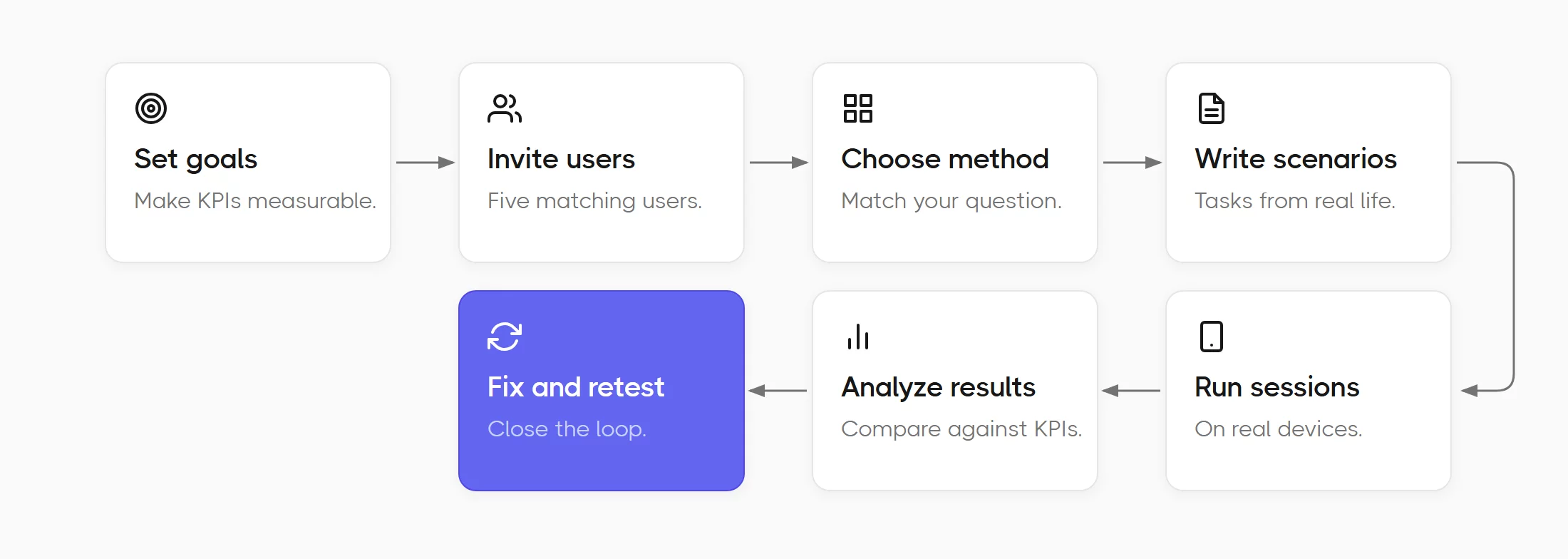
A small startup and a QA team follow the same steps. The difference is the scale.
- Defining goals and KPIs (key performance indicators). Goals work best when they’re measurable: 80% of new users complete signup in under 2 minutes beats a vague goal like easier onboarding.
- Inviting users who match your audience. Teammates are a poor fit. They know too much about the product to get lost in it.
- Choosing the method. You can match the method to your question and your budget.
- Writing neutral task scenarios. Good tasks describe the goal, like ordering a pizza for delivery. A task that names every button already contains the answer.
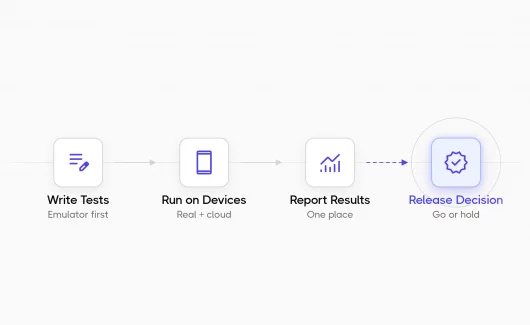
- Running the sessions on real devices. Real mobile devices reveal what emulators miss: thumb reach, keyboard overlap, real network delays. A screen recording with the user’s comments completes the picture.
- Analyzing results against your KPIs. You can compare task success and completion time with the targets from step 1. The recordings show you the moments users hesitate.
- Fixing and retesting. Usability testing runs in cycles. A quick recheck confirms that your changes removed the friction before you close the task.
One full cycle can fit into a single sprint. Teams that run it before every major release catch serious issues while they’re still cheap to fix.
Key Usability Metrics to Track
Watching sessions gives you stories. Metrics turn those stories into decisions you can defend in a release meeting, the same way you’d defend any other QA metric that actually tells you something.
- Task success rate. The share of users who complete a task. Above 85% usually signals a clear flow.
- Time on task. How long completion takes. Falling time across iterations means the interface is getting clearer.
- Error rate. Wrong taps and backtracking. Rising errors point to a confusing layout.
- Task abandonment. Users who start a flow and quit. High abandonment in checkout or signup means you lose money in real time.
- System Usability Scale (SUS). A standardized 10-question survey scored 0 to 100. Research by Jeff Sauro at MeasuringU puts the average score at 68, so anything above that beats the typical product.
You can choose two or three metrics that map to your test goals and track them in every round. A testing analytics dashboard charts those numbers across runs, so your progress from release to release stays visible.
Usability Testing Tools for Mobile Apps
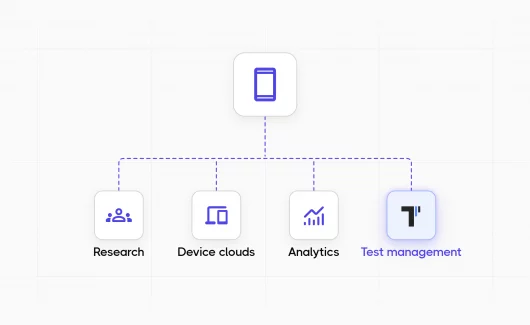
In practice, usability testing tools for mobile apps fall into four categories. A single usability testing tool usually covers one job, so experienced teams combine some of them to cover the full usability testing cycle.
| Category | What they do | When you need them | Examples |
|---|---|---|---|
| Research platforms | Recruit participants and run sessions with screen and reaction recording | Prototype tests and dedicated usability studies | Maze, Lookback, UserTesting, UXtweak |
| Device clouds | Run your app on thousands of real devices remotely | Coverage across screen sizes and OS versions | BrowserStack, AWS Device Farm |
| Product analytics | Session replays and heatmaps from production traffic | Finding friction after release, at full user scale | UXCam, Hotjar |
| Test management | Turn usability findings into tracked test cases next to your automated tests | Making usability checks repeatable across releases | Testomat.io |
The first three categories find problems. The fourth one keeps them from coming back, which is the part most teams skip. If device coverage is your bottleneck, we’ve compared the leading BrowserStack alternatives in a separate guide.
A note on pricing and features: this market shifts fast, so it’s safer to verify details on the vendors’ pages before you commit.
Can Usability Testing for Mobile Apps Be Automated?
You can automate part of usability testing for mobile apps: tools cover accessibility scans and scripted flow checks, while judging whether users understand the app needs real people.
Fully automated usability testing for mobile apps remains out of reach for now, and any tool claiming otherwise is overselling. What does exist is a growing set of checks that run unattended:
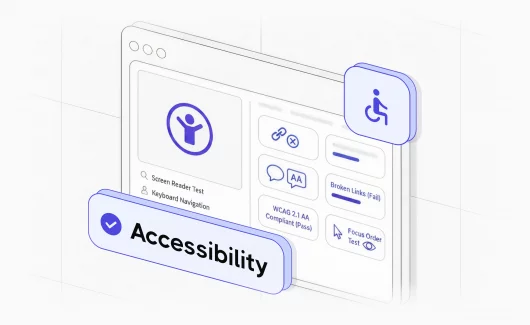
- Accessibility scans. Automated checks against WCAG guidelines catch low-contrast text and undersized touch targets on every build. They flag missing labels too. Our guide to accessibility testing best practices shows how to build these checks into a repeatable workflow.
- Scripted flow completion. Frameworks like Appium can walk your critical flows on real devices in CI, proving each screen is reachable after every commit. With multi-environment execution in Testomat.io, you can run the same mobile testing suite across Android and iOS configurations and track coverage for each environment.
- Performance signals. Startup time and dropped frames are measurable signals of how fast the app is. You can set budgets and fail the build when they regress.
- Funnel analytics. Automated drop-off tracking in production flags which step of a flow loses users, so your next human session knows where to look.
AI and Automated Exploratory Testing
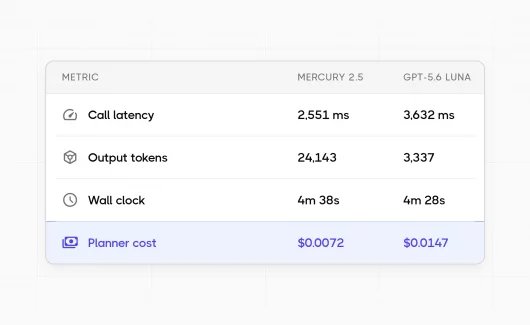
The newest layer is AI agents that explore your app the way a curious user would: they tap through screens and report the problems they find. Explorbot works this way. The AI agent investigates the app freely and converts each discovery into a Playwright or CodeceptJS test you can keep. It runs in your CI and produces 30 to 50 tests per hour, at a cost of about $1 per hour in AI tokens. Explorbot focuses on web apps, so you can run it on the web or mobile-web version of your product.
The same AI testing features can draft test cases from your requirements, which is a fast way to build a usability checklist for a new feature. These agents work best as an extension of human testing rather than a replacement. They widen your coverage between sessions with real users, and they re-check the same flow on release day with steady patience.
How to Make Usability Testing Part of Your QA Workflow with Testomat.io
Here’s where most guides stop and most teams fail. A usability study produces a slide deck and everyone nods. Three releases later the same friction is back because the team skipped the re-check.
The fix is to manage usability findings like any other part of your QA process:
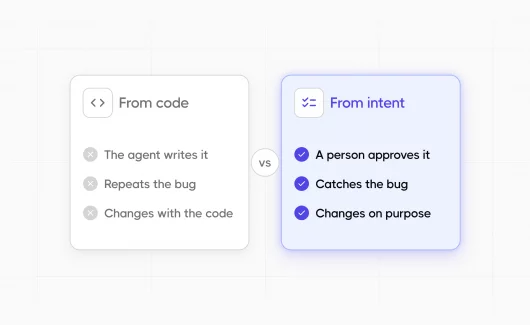
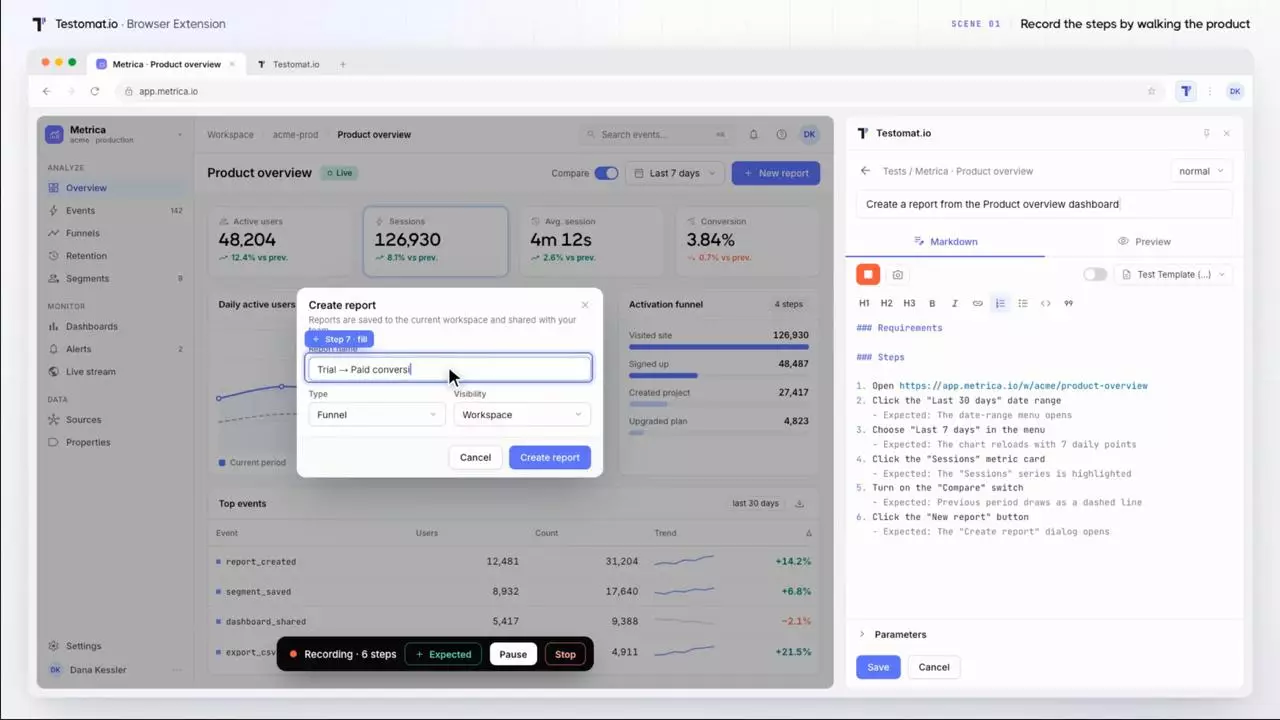
- Recurring findings become test cases. “Keyboard keeps the promo code field visible” becomes a manual test case with steps and expected results, tracked across releases.
- A living usability checklist per release. Items like thumb reach and offline states. You can run it as a manual suite alongside your automated regression.
- Usability regression on every new release. A redesign that fixed onboarding in one release can quietly break it in the next. Re-running the usability-critical flows each time catches that.
- Direct visibility for stakeholders. A PM who can open the report directly stops asking for status updates in Slack.
This is the gap Testomat.io covers. Manual usability checks and automated flow tests live in one test case management workspace, so coverage reports include both. When a finding becomes a bug in Jira or GitHub, the Defects Board links it to the failing test, so you can see which usability issues block a release. And read-only access is free. PMs and designers see open usability results in a couple of clicks.
If your usability findings currently live in spreadsheets, this unified setup fixes the core problem. Sessions and automated results stay connected because they live in one place.
Common Usability Testing Mistakes to Avoid
Even experienced teams repeat the same few mistakes. These five appear most often:
- Testing on teammates. Colleagues know the product too well. Their success says little about real users.
- Scenarios that contain the answer. If the task says which button to tap, you’re testing reading comprehension.
- Leading the participant. A moderator who explains the interface mid-session spoils the result. The moderator’s job is to stay quiet and take notes.
- Ignoring qualitative feedback. The numbers say what happened. The user’s comments during the session explain why.
- Skipping the re-tests. A single test cycle reflects the app at launch. Every release changes the product, so regular re-tests keep usability strong.
If you avoid these five, even a modest testing program will outperform an expensive one-off study.
Wrapping Up
Usability testing for mobile apps tells you the thing your pipeline misses: whether real people can use what you released. You can start small with five users and a clear task list, then automate the checks machines handle well. The findings stay alive in your test management workflow instead of a forgotten document. If you want usability test cases next to your automated tests, you can create a free Testomat.io account and see the full picture in one place.