




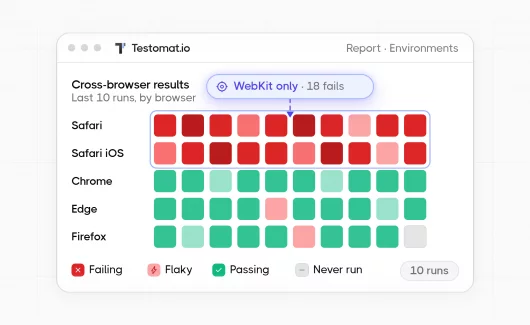
Every web product needs two things a browser can break: the layout your users see, and the JavaScript that makes it work. Your team releases features every week, and a rendering fault in Safari can reach a user before anyone on the team opens Safari. Automated cross browser testing finds those faults while the code is in your pipeline. In the article below, you can find which browsers to cover and which tools to use, then how to read every result as a report.
What Is Automated Cross Browser Testing?
Automated cross browser testing runs the same test suite across multiple browsers and operating systems without manual repetition, so rendering and behavior differences appear before release. The word browser covers a variable that matters more than the name. Chrome, Edge, Opera and Samsung Internet all use the Blink engine, so a page that renders correctly in Chrome usually renders correctly in the other three. Safari uses WebKit. Firefox uses Gecko. Those engines parse CSS and run JavaScript with real differences, and that is where compatibility faults appear.
Common Browser Compatibility Issues
Three groups of problems cause most cross-browser failures, and each group appears in a different layer of your application.
#1: Rendering and CSS Layout Differences
Engines apply CSS with small variations, and those variations become visible at the edges of your layout. Flexbox gaps and scrollbar width differ between Blink and WebKit, and so does the default styling of form controls. A container that fits its content in Chrome can overflow by a few pixels in Safari, which pushes a button off the visible screen on a mobile viewport. Font rendering adds a second layer. The operating system decides how it smooths and spaces glyphs, so the same CSS produces slightly different text width on Windows and macOS. A navigation bar that fits five items on Windows can wrap to two lines on macOS.
#2: JavaScript API and Feature Support Gaps
Browsers adopt web platform features at different speeds. A method available in Chrome for two years can arrive in Safari later, and your code fails silently when the method is missing. Media playback rules differ too, because iOS Safari restricts autoplay more strictly than desktop Chrome, so a video that starts automatically in your tests stays paused for real users. Storage behavior varies as well. Private browsing modes restrict what your application can write, and a feature that needs local storage can fail for a subset of your users while every desktop test passes.
#3: Mobile Viewport and Touch Behavior
A mobile browser changes more than the screen size. A touch screen lacks a hover state, so a menu that opens on hover becomes unreachable. Virtual keyboards resize the viewport when a user focuses an input, which moves your fixed footer over the field they are typing into. iOS adds a constraint that surprises teams. Every browser on iOS uses WebKit underneath, whatever the icon says, so testing Chrome on iOS tells you about WebKit rather than about Blink.
Which Browsers Should You Test First?
Your cross-browser testing matrix starts with the engines your traffic uses. Most teams cover Chromium and WebKit first, then add Gecko.
StatCounter measured Chrome at 68.22% of worldwide browser use in July 2026. Safari reached 16.47%, Edge 5.37% and Firefox 3.34%. Sorted by engine, the list gets much shorter:
- Blink covers about 77% of users.
- WebKit covers about 16%.
- Gecko covers about 3%.
Three things decide your matrix, and you already have all of them.
- Analytics. Your own traffic is more accurate than any global average. Many companies keep Edge as the default browser on Windows laptops, so a B2B product sees more Edge than StatCounter suggests. A consumer app sees more mobile Safari.
- Critical pages. Checkout and signup need wider coverage than your settings page. A layout fault in a settings toggle costs you a support ticket. The same fault in a payment form costs you the sale.
- Engines. One Chromium browser tells you almost what four Chromium browsers tell you. Edge adds little after Chrome. Safari adds 16% of the market and a different engine.
A Practical Cross-Browser Testing Matrix
Each engine gets a row on desktop, and a row on mobile where people use it. A product with both audiences gets five combinations:
| Engine | Browser | OS | Viewport | Why it belongs |
|---|---|---|---|---|
| Blink | Chrome latest | Windows | desktop | largest share |
| WebKit | Safari latest | macOS | desktop | second engine |
| Gecko | Firefox latest | Windows | desktop | third engine |
| Blink | Chrome latest | Android | mobile | mobile share, touch input |
| WebKit | Safari latest | iOS | mobile | iOS traffic, smaller screen |
Firefox gets no mobile row, because its mobile share stays low. Those five are the minimum, and your analytics decides what you add on top:
- Edge on Windows, when corporate fleets form most of your audience. It adds traffic rather than a new engine.
- Safari one version back, because people update iOS and macOS slowly.
- Chrome on macOS, when your layouts are text-heavy and the different font rendering matters.
Record the rows you skip, so your team remembers the choice when a fault arrives from a browser you left out. You can review the list every quarter. Browser share changes slowly. Your own traffic changes faster, so a combination that made sense last year can stop being useful.
How Do Automated Cross-Browser Testing Tools Work?
Automated cross-browser testing tools drive a real browser through a protocol, then report what happened. Your test code stays the same, and the tool changes which browser receives the commands.
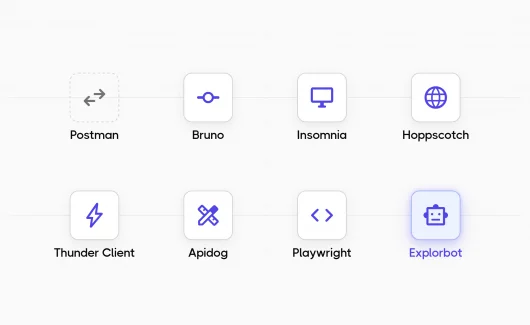
Playwright
Playwright includes its own builds of Chromium, WebKit and Firefox. You install them with a single command, and you can run WebKit on Linux CI without a Mac. The WebKit build approximates Safari rather than matching it exactly, so a final check on real Safari still deserves a place in your pre-release layer.
Cypress
Cypress runs Chromium browsers and Firefox natively. WebKit support requires the experimentalWebKitSupport flag and the playwright-webkit package. The Cypress documentation still labels it experimental. If Safari coverage matters to your product, that flag can decide your framework choice.
WebdriverIO
WebdriverIO speaks the W3C WebDriver protocol, so it drives any browser with a compliant driver. Its service architecture connects the same suite to a local browser, a Selenium Grid, or a cloud vendor by changing configuration. Teams with a mixed browser matrix often choose it for that flexibility.
Selenium and Selenium Grid
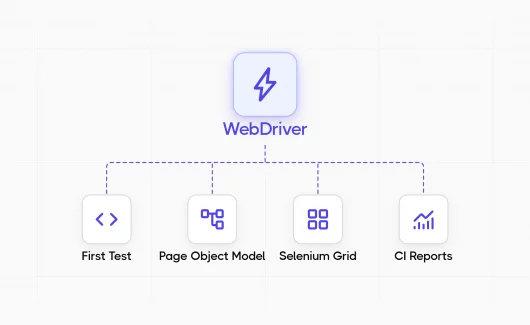
Selenium remains the common answer for automated cross browser testing, and many teams already run it. WebDriver is a W3C standard, and every major browser vendor provides a driver that implements it, so the same script drives Chrome and Safari without a rewrite.
A local Selenium run drives one browser on your machine. Selenium Grid drives many browsers across many machines in parallel. The hub receives your session request and routes it to a node whose capabilities match what you asked for. You declare the browser in the capabilities object, and swapping ChromeOptions for SafariOptions sends the same test to a different engine. Our detailed comparison of the three frameworks covers the remaining trade-offs, and Selenium alternatives covers the newer options.
Cloud-Based Cross-Browser Testing Platforms
A cloud platform rents you browsers and machines. You send a session and receive a result with a video recording. Your matrix width becomes a billing question rather than a hardware question, and Safari on real macOS stops requiring a Mac in your office. These platforms give you the browsers. Each session returns a separate result, so a five-combination matrix produces five reports to compare.
How Do You Run Cross-Browser Tests in CI/CD?
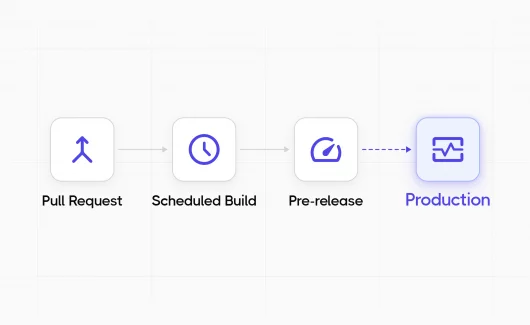
You define the browsers as a matrix in your CI configuration. The pipeline then runs every combination in parallel, and each combination executes the same suite against a different browser.
Matrix Strategy in GitHub Actions and GitLab CI
GitHub Actions builds the matrix from a list. Three browsers run in parallel:
jobs:
  test:
    strategy:
      fail-fast: false
      matrix:
        browser: [chromium, firefox, webkit]
    runs-on: ubuntu-latest
    steps:
      - uses: actions/checkout@v4
      - run: npx playwright test --project=${{ matrix.browser }}
The fail-fast: false line deserves attention. With the default value, a Safari failure cancels your Chrome run. You then lose the information that would have told you whether the fault affects both engines.
GitLab CI uses parallel: matrix with the same idea, and the name includes the browser so your pipeline view stays readable.
Environment Variables and Browser Selection
Keep the browser list in the CI configuration and pass the selection into your test command through a variable. Your test code then reads the variable rather than storing a browser name, which lets the same suite serve a two-browser merge run and a full-matrix release run.
A suite of 300 tests that takes six minutes on Chrome takes 30 minutes across five combinations in sequence. In parallel you wait about six minutes again, and you pay for five times the machine time. Retries change that arithmetic, because a pipeline that retries twice can triple the cost of a bad run. Parallel testing covers the mechanics, and CI/CD test execution covers the triggers.
How to Aggregate Cross-Browser Test Results With Testomat.io
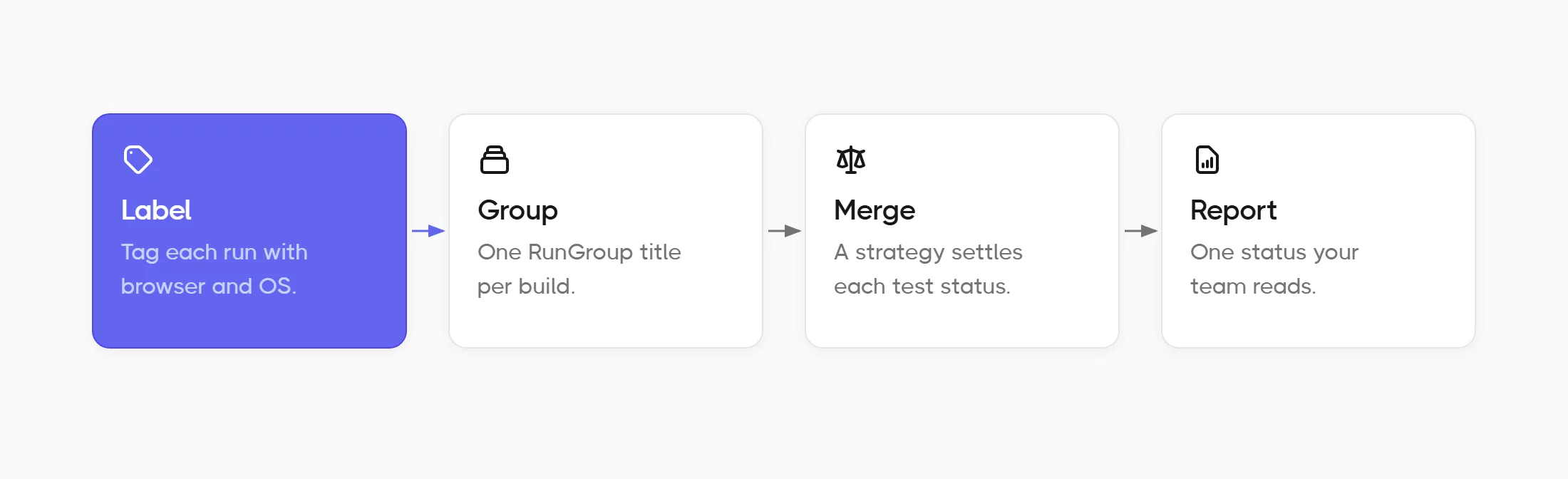
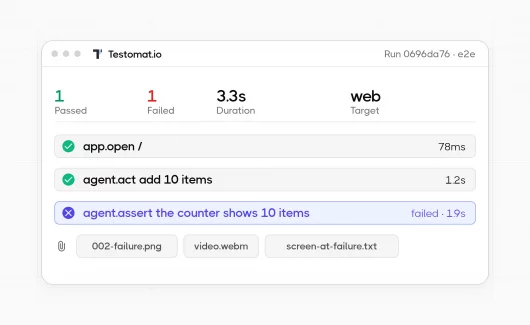
Five parallel runs produce five reports. Your pipeline shows five status badges, and a QA lead who wants to answer the release question opens all five and compares them manually. Three steps turn those five reports into one verdict.
Reusable Test Cases Across Environments
Your test cases stay identical across browsers, so you store them once in your test case management, then label each run by environment. In Testomat.io you add environments in Settings, one per line, using a {category}:{value} format, for example Browser:Safari or OS:MacOS. Each combination then passes its own values at runtime:
TESTOMATIO={API_KEY} TESTOMATIO_ENV="MacOS, Safari" npx playwright test
One set of test cases now serves every combination in the matrix, and results filter by environment, so a question about failures that happened only in WebKit becomes a filter instead of an hour spent reading logs.
Group the Matrix Runs
Each parallel run reports separately by default, which is how you end with five reports. You can give every run in a build the same RunGroup title, and they arrive as one group:
TESTOMATIO_RUNGROUP_TITLE="Build ${BUILD_ID}"
TESTOMATIO_SHARED_RUN works at the run level, matching parallel runs by title, so your commit hash makes a good value. Watch the time limit: a shared run created more than 20 minutes earlier counts as finished and a new run appears instead. TESTOMATIO_SHARED_RUN_TIMEOUT raises that limit for a long matrix. The group then opens as a Combined Report, which shows every run in a single view, with the status counters calculated from the run you set as the main one.
A failure list of 25 items across five browsers usually contains five real faults repeated five times. AI failure clusterization groups those failures by pattern, so you repair one root cause instead of triaging fifty separate errors.
Pick Your Release Verdict
The same test can pass in Chrome and fail in Safari, so the group needs a rule. A merge strategy supplies it. You set it when you create the RunGroup, and you can change it afterwards from the Extra menu.
| Strategy | Result | Use it for |
|---|---|---|
| Pessimistic | the test fails if it failed in any run | release decisions |
| Optimistic | the test passes if it passed in at least one run | flakiness triage |
| Realistic | the result of the last run | current state |
Pessimistic suits a release decision, because a WebKit-only failure keeps the release blocked. Optimistic hides that same failure, so it helps while you separate flaky tests from real faults, and it makes a poor release rule. Most teams keep Pessimistic on the release group and switch to Optimistic only during triage. A strategy settles one test at a time. AI agents work at project level, and they assess release readiness from execution and coverage rather than from a single run.
Moving From Cloud Grids to Test Management
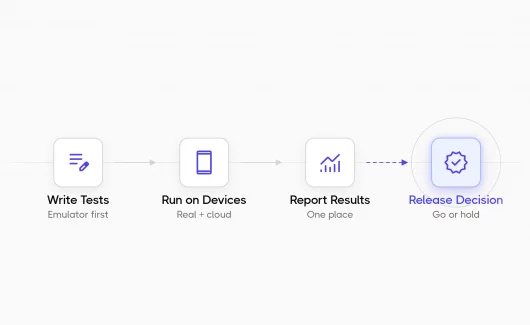
A migration usually starts at the reporting layer instead of the grid. You keep sending sessions to the same cloud vendor, and you add a reporter that forwards each result into your test management project with its browser and operating system attached. The grid contract stays unchanged, and the reporting improves on the next pipeline run.
These two layers work together rather than compete. Your cloud grid supplies the browsers and the video recordings. Your test management system supplies the coverage history and the single report your stakeholders read. You can keep the grid contract you already pay for and send its results into one place, which costs you a reporter configuration rather than a migration.
How to Handle Flaky Cross-Browser Tests
A browser fault fails the same test in the same browser every run. A flaky test fails randomly across all browsers. Pass-rate history separates them.
Sources of Cross-Browser Flakiness
Cross-browser suites create flakiness in four ways.
- Timing differs between engines, so a wait that suits Chrome proves too short for a slower WebKit render.
- Shared test data collides when five browsers write to the same account at the same moment.
- Network conditions vary between cloud regions, and a session in a distant data center times out where a local one passes.
- Cloud grids queue your sessions when the account reaches its parallel limit, so a queued session can exceed your test timeout while it waits.
The fourth source appears only at scale, and the cause is your plan size rather than your application. When timeouts appear in every browser at once, check your parallel limit before your code.
Triaging Failures Across Browsers
History answers the question, and you need that history grouped by environment. Testomat.io calculates flakiness from the pass rate across the last 100 runs, and you set the minimum and maximum success rate that counts as flaky in your project.
A test at 50% across every browser is flaky. A test at 100% in Blink and 0% in WebKit is a Safari fault. The timing matters as much as the pattern: a test that passed on Safari yesterday and fails on Safari today, while the code stayed the same, points at your test data rather than at the engine. Compare test runs puts the Chrome run and the Safari run side by side, so one screen answers the question. Our guide on fixing flaky tests covers the repair work. You quarantine a confirmed flaky test into a separate group while an engineer repairs the root cause, and you keep browser-specific failures in the main suite where they block the release.
Bottom Line
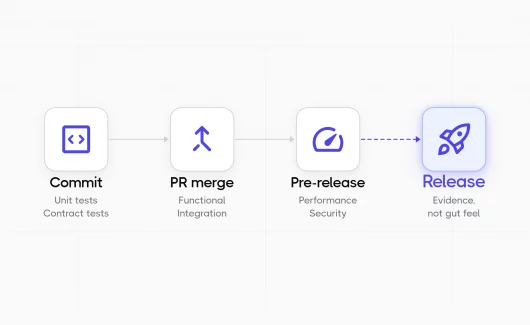
Automated cross browser testing works when two decisions support each other. You choose the combination that fits your product, so the five rows above are a starting point rather than a rule: one row per engine on desktop, plus a mobile row where that engine has users. You read the whole matrix as one report, because a badge answers a question about one run, and your stakeholders ask about the whole product. You label each run by browser and group the runs by build, then a merge strategy gives the whole group one status. If you are ready to connect your existing Selenium or Playwright runs in a few minutes, try Testomat.io free.